Collecting customer reviews
Request reviews, manage what comes in, and show them off on your public pages.
The Reviews section lets you email customers a link to leave a review, track whether they opened or completed the request, moderate incoming reviews, and reply to them publicly. Published reviews automatically appear on your public reviews page.
Send a review request
- From the dashboard, go to Reviews in the left nav.
- Click Send (top right of the Reviews page).
- In the Job (optional) dropdown, pick the job the review is for, or leave it blank.
- Enter the customer's name in Customer name and their email address in Customer email (required).
- Click Send review request.
The customer receives an email with a link to your review form. You can customize the email wording under Settings (see below).
Track requests
Click Requests (top right of the Reviews page) to see every request you have sent. Each row shows one of four statuses:
| Status | Meaning |
|---|---|
| Sent | Email delivered, not yet opened |
| Opened | Customer opened the email |
| Clicked | Customer clicked the review link |
| Completed | Customer submitted a review |
Use the all / pending / opened / completed filter tabs to focus on a specific group. For every request you can click QR to download a QR code that links directly to the review form, useful for printing on invoices or receipts. For any request that has not been completed you can also click Resend to send the email again.
Manage incoming reviews
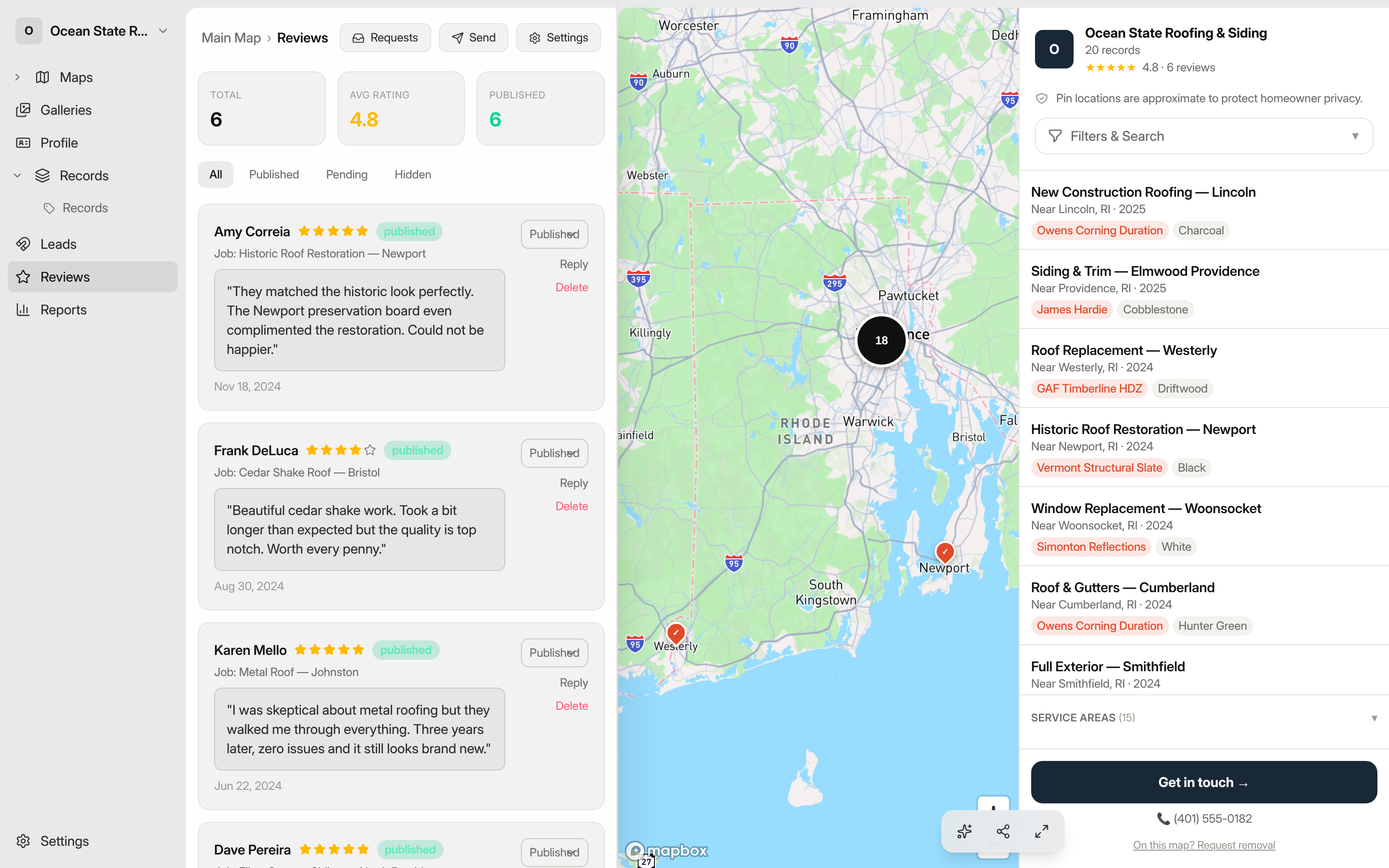
On the main Reviews page you will see stats for Total, Avg Rating, and Published reviews, followed by a list of every review.
- Use the all / published / pending / hidden filter tabs to narrow the list.
- To change a review's visibility, use the status dropdown on the right side of the review card and choose Published, Pending, or Hidden.
- To respond publicly, click Reply (or Edit reply if one already exists). Type your response in the text area; it auto-saves when you click away and will appear below the review on your public page.
- To permanently remove a review, click Delete and confirm.
Customize the email template and survey
Click Settings (top right of the Reviews page) to open Review Settings.
Review Survey Questions: add questions customers answer alongside the star rating. Each question has a Type (Star rating (1–5), Yes / No, or Free text), a Required checkbox, and a Show publicly checkbox that controls whether the answer appears on your public reviews page.
Email Templates: edit the subject and body for the Initial request and up to two follow-up emails (Follow-up 1 and Follow-up 2). Use the placeholders {customer_name}, {company_name}, and {review_link} in your copy. Toggle each follow-up on or off and set the delay in days.
Review Links for Email Requests: paste your Google, Facebook, or custom review-site URLs here. They are appended to every outgoing email so customers can also leave a review directly on a third-party platform.
When you are finished, click Save changes.
Sync your Google and Facebook reviews (Growth and Network)
Instead of only collecting new reviews, you can import the ones you already have. In Review Settings, find the Review sync section and connect Google Business Profile or Facebook:
- Click Connect next to the provider and approve access to your business account.
- Your existing reviews are imported and appear alongside reviews collected through sawyoursign.
- New reviews are pulled automatically on a regular schedule. You can also click Sync now at any time, or Disconnect to stop syncing.
Imported reviews keep their original reviewer name, rating, text, and date, and you can moderate and respond to them just like any other review. (A provider only appears as connectable once it has been configured for your account.)
Where reviews appear publicly
Any review with status Published appears on your public reviews page at yourdomain.com/your-slug/reviews. The page shows an aggregate star rating, a distribution bar chart, and each review with the reviewer's name, star rating, written feedback, any publicly-shared survey answers, and your owner response (if you added one). Owner responses appear under a "Response from [your company name]" heading.
Tip: Reviews are also linked back to the specific job record they were left for, so visitors can click through to see the full project details on your map.