Creating a gallery
Build a shareable, filterable gallery of your photos and media.
A gallery is a media album that combines two sources: a smart album of images and videos drawn automatically from your records, and any photos or videos you upload directly to the gallery. The smart-album part updates itself as you add new records and media; your manual uploads stay put. You can also drag everything into whatever order you like.
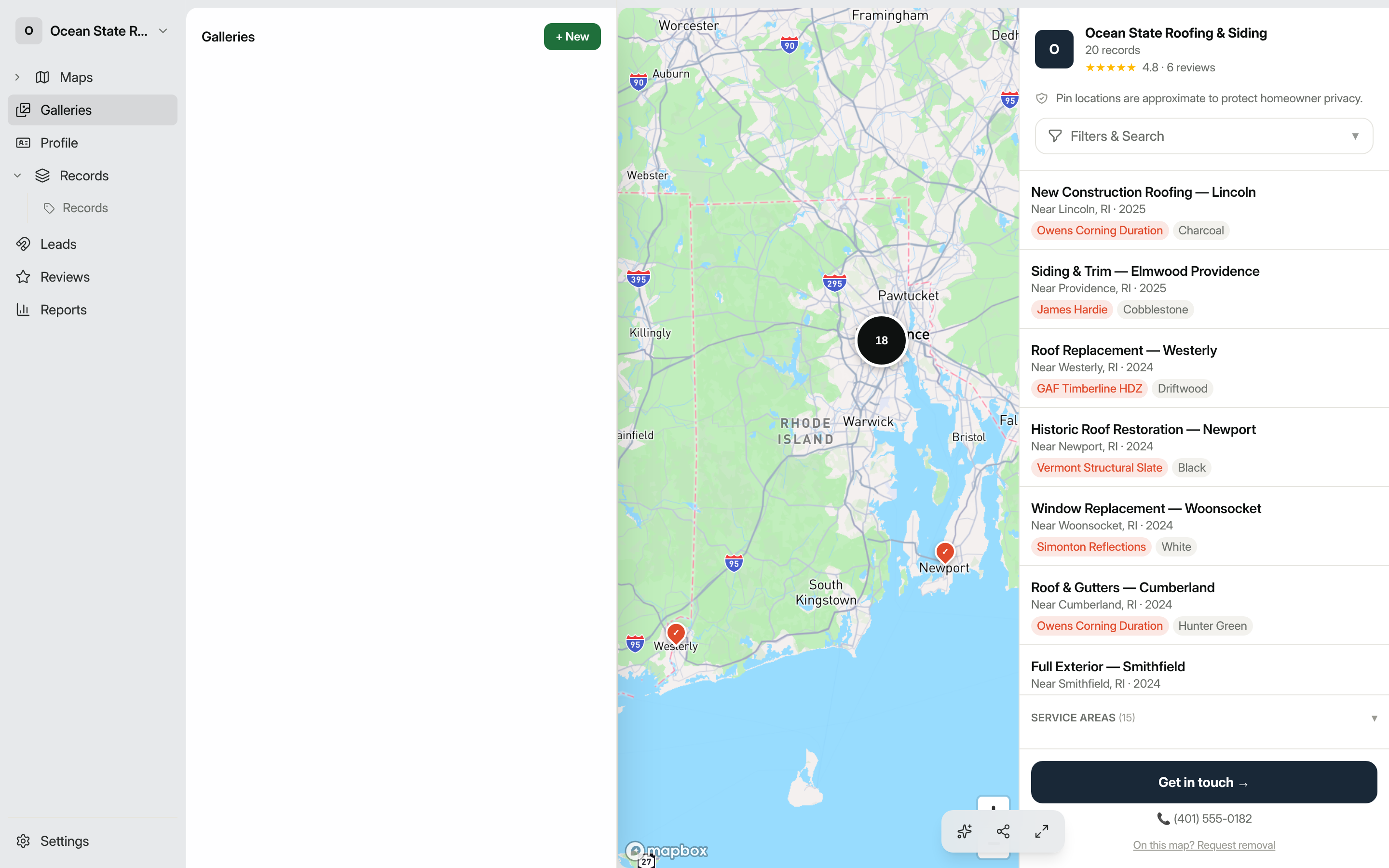
Create a gallery
- In the dashboard sidebar, click Galleries.
- Click + New in the top-right corner.
- In the "New gallery" dialog, enter a Name (required). The placeholder suggests something like Solar installations 2024.
- Optionally choose a Record type to limit the gallery to media from one record type, or leave it as All record types.
- Set Visibility: choose from Public (anyone with the link), Unlisted (link only, never indexed), or Team only (signed-in team members).
- Optionally add a Description.
- Click Create gallery. You'll land on the gallery overview, which shows a live media grid of everything currently matched.
Understand what populates the gallery
Part of a gallery is a smart album: it pulls media from records that match your configured filters. To change which records contribute, head to Settings and open the Filters tab to adjust the scope. A gallery with no matching records simply shows whatever you upload to it directly.
Add your own photos and videos
You don't have to wait for records; you can upload media straight into a gallery:
- From the gallery overview, click the Add media tile in the media grid.
- Pick an image (JPEG, PNG, WebP, or AVIF) or a video (MP4, WebM, or MOV). Images can be up to 50 MB; videos up to 200 MB.
- The upload appears in the grid with an Uploaded badge. Items pulled from records show a From record badge and link back to the record.
To add a caption, alt text, or tags to an uploaded item, click the ⋯ menu on its tile. Click Delete in that menu to remove an upload (this also deletes the stored file). Items that come from records are managed on the record itself, so they're read-only here.
Arrange the order
Drag any tile (uploaded or record-sourced) by its grip handle to reorder the gallery. Your arrangement is saved automatically and switches the gallery to the Manual sort so the order shows on the public page. Pick a different sort (Newest, Oldest, or By record) under Settings → Appearance to ignore the manual order. Reordering is paused while a tag filter is active; clear the filter first.
Adjust settings
From the gallery overview, click Settings in the top-right corner. The settings sidebar has five tabs:
- General: rename the gallery, update its description, change the record-type scope, or make it your default gallery.
- Filters: set smart-album filters to restrict which records contribute media (same filter vocabulary used by maps).
- Appearance: choose a layout (Grid, Masonry, or Filmstrip), set the number of columns (1–6 for grid/masonry), toggle Show captions, pick a sort order, and choose a color theme.
- Sharing: control who can see the gallery (Public, Unlisted, Password, or Team only) and copy the share link.
- Tags: filter the album to only media carrying specific tags, and restrict it to images only, videos only, or all media.
Save any tab by clicking Save at the bottom of the page.
Share the gallery
The fastest way to copy the share link is from the Galleries list: click the copy icon on any row. You can also go to Settings → Sharing and copy the URL shown under Share link → Public URL.
The share link uses a short token URL (/g/…), no tenant slug required. If you want the gallery to appear on your public workspace page, go to Settings → Sharing and click Set as default gallery.
Tip: To limit the gallery to a specific job type (for example, only roofing photos), open Settings → General and choose a record type under Record type scope, then use the Filters tab to narrow by field values such as material or service area.